Wireguard
These are the instructions for accessing the HPE Fort Collins LR5 test lab via WireGuard VPN.
Setup
-
Download your individual WireGuard certificate (provided separately).
-
Download and install the WireGuard client from wireguard.com/install.
-
After installing, the client will open with an empty tunnel list:
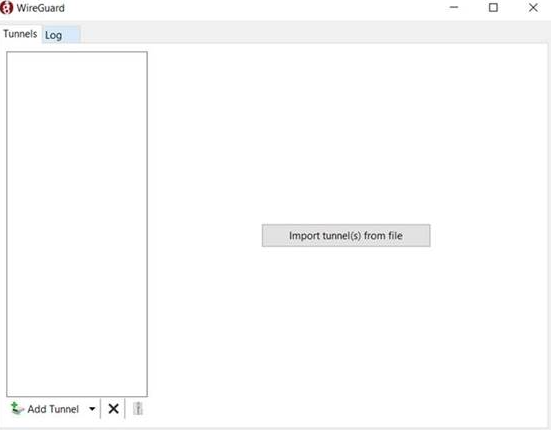
Click Add Tunnel in the lower left and point it to your individual certificate file.
-
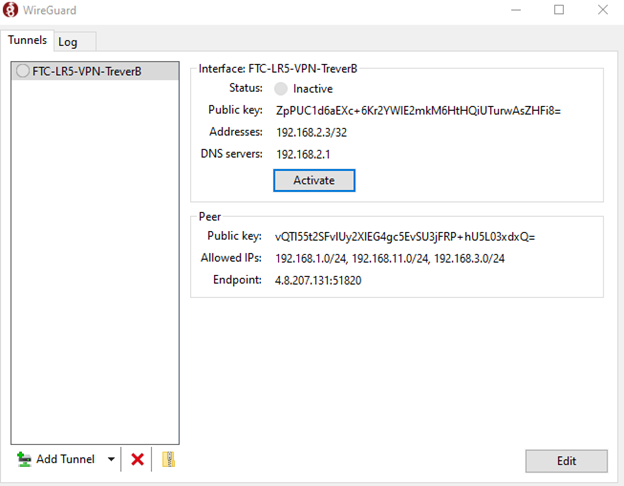
Your profile will appear in the left panel. Click Activate to bring up the VPN tunnel.
-
Test your connection by navigating to 192.168.1.1 in a browser. You should see the UniFi gateway login page:
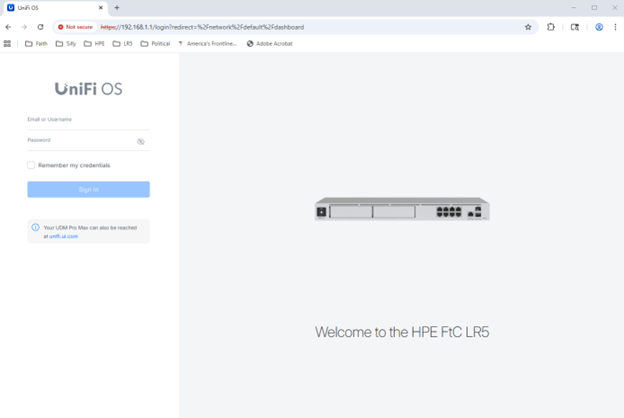
If you reach this screen, you can now open browsers, RDP sessions, and SSH sessions directly to systems in the LR5.
Troubleshooting
Home network conflict
If your home network is on a 192.168.1.0/24 subnet, it conflicts with the LR5 subnet. To fix this:
- Select your tunnel in the client and click Edit (lower right corner).
- In the Peer section, find the AllowedIPs field.
- Replace it with only the specific IPs you need to reach, appending
/32to each. For example:AllowedIPs = 192.168.2.1/32, 192.168.1.200/32 - Click Save and test your connection again.
FQDNs not resolving (e.g. ipam.unifi.local)
If you can reach IP addresses but hostnames like ipam.unifi.local don't resolve, your tunnel is missing the correct DNS configuration.
- Select your tunnel and click Edit.
- In the Interface section, verify the DNS field is set to the UniFi DNS server and includes the
unifi.localsearch domain:DNS = 192.168.2.1, unifi.local - Click Save and reactivate the tunnel.
The 192.168.2.1 entry points to the UniFi gateway's DNS resolver, and unifi.local sets the search domain so short names like ipam resolve to ipam.unifi.local automatically. This is important for some sites like VME which require a FQDN instead of short names.