Proxy information
Note
Summer 2026 Update: Proxy is now handled at the aaS gateway (192.168.20.1) and should not need to be specified at the client. However, if you have a device that requires a non-standard proxy (such as an array hooked to Pavo), set your gateway to 192.168.20.2 and manually specify the desired proxy at the client. The steps below have been preserved as an example of how to set the proxy.
Note
The FQDN hpeproxy.its.hpecorp.net currently (8/2026) resolves to 10.79.90.173, which should be used as the IP below, that is, if the Proxy is set, which is currently not recommended.
Self-managed Windows/Linux laptops at FTC site non-lab
Note
System managed by HPE IT will have proxy settings automatically updated.
In order to access the internet, configure the proxy.
- Click Windows key and type Internet Options.
- Click the Connections tab.
- Click LAN settings.
- Uncheck Automatically detect settings.
- Check Use automatic configuration script and enter url
http://proxy-lab.its.hpecorp.net
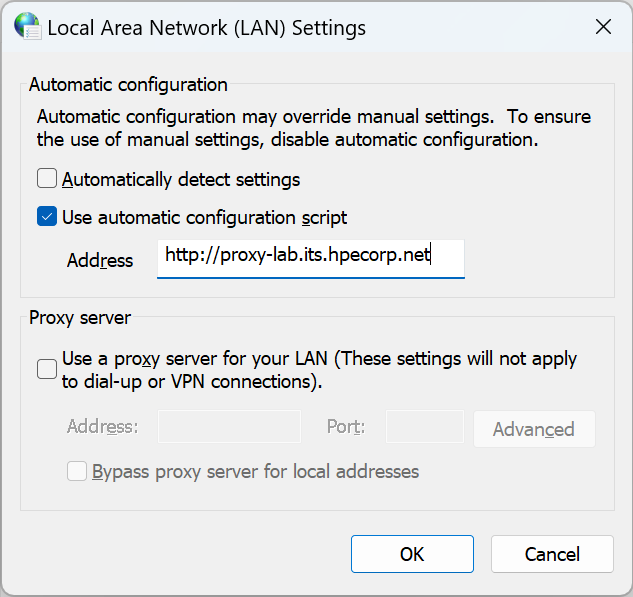
All Windows lab systems in the aaS environment.
Do NOT apply the URL http://proxy-lab.its.hpecorp.net to any FTC aaS equipment.
The corporate PAC file used does not allow bypassing local subnets or private lab domains. If you apply http://proxy-lab.its.hpecorp.net, you will be unable to access any internal systems on 192.168.16.0/21 subnet or *.hpelab.local domain.
- To configure manual proxy, check Use a proxy server....
- In the Address field, enter the IP address
10.79.90.46. - In the Port field, enter the port number
443. - Click box to "Bypass proxy server for local addresses."
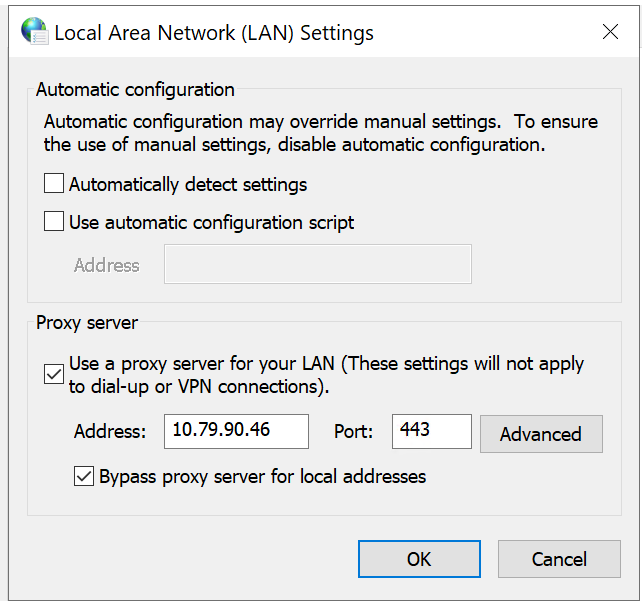
- Click Advanced to add any items to Exceptions to bypass proxy.
- 192.168.*
- *.hpelab.local
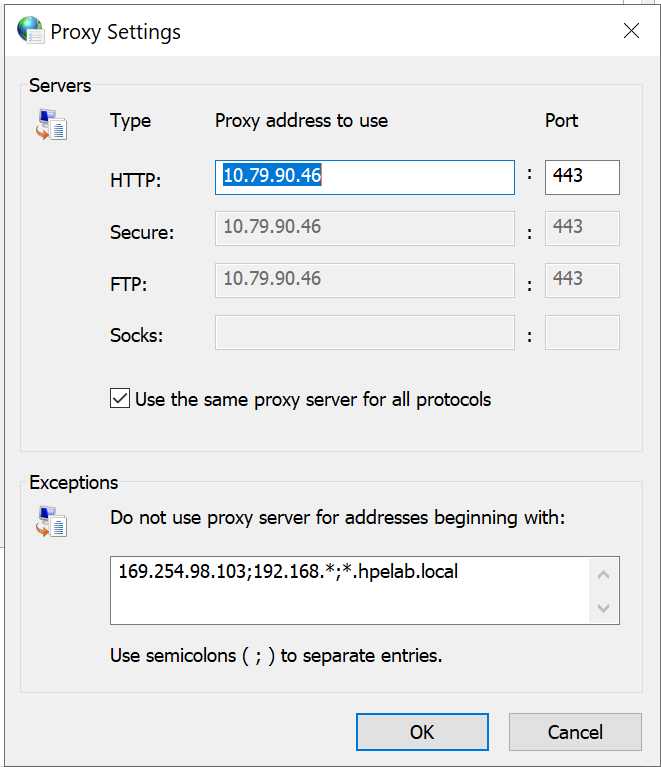
- Click OK; then click OK to close the Internet Properties window.
Linux Hosts
** shouldn't need this as noted above, after 8/2026 **
Create the following shell script:
vi proxy.shCopy the following into the script.
#/bin/bash

cat <<EOF >> /tmp/proxy
export http_proxy="http://10.79.90.173:8080"
export https_proxy="http://10.79.90.173:8080"
export no_proxy="localhost,127.0.0.1,0.0.0.0,10.10.0.0/16,cattle-system.svc,.svc,.cluster.local,.hpelab.local,172.17.0.0/16,16.0.0.0/8,192.0.0.0/8"
EOF

cat /tmp/proxy >> /etc/environment
cat /tmp/proxy >> /etc/bashrc
cat /tmp/proxy >> /etc/profile.d/proxy.sh


mkdir -p /etc/systemd/system/docker.service.d/

cat <<EOF >> /etc/systemd/system/docker.service.d/no_proxy.conf
[Service]
Environment="NO_PROXY=localhost,127.0.0.1,0.0.0.0,10.10.0.0/16,cattle-system.svc,.svc,.cluster.local,.hpelab.local,172.17.0.0/16,16.0.0.0/8,192.0.0.0/8"
Environment="HTTP_PROXY=http://10.79.90.173:8080"
Environment="HTTPS_PROXY=http://10.79.90.173:8080"
EOF
Save and Exit.
Make the file executable.
chmod +x proxy.shRun the command and then reboot your host for the settings to take effect.
sudo ./proxy.sh