Windows Domain Infrastructure
Domain Services
The hpelab.local domain is configured for all major services within the aaS lab environment. Each user of the lab is issued domain credentials that is used throughout the environment for access.
To join the domain, configure DNS:
- Primary DNS: 192.168.20.5
- Secondary DNS: 192.168.20.6
Right click Start menu, click System.
In the menu on the right side, click Advanced system settings.
Click the Computer Name tab, and click Change domain or workgroup.
Enter hpelab.local and click OK.
Enter your domain credentials. Once joined to the domain.
Reboot the server.
Windows Server Update Services (WSUS)
All servers joined to the hpelab.local domain use a central WSUS server available to the FTC lab configured via domain Group Policy. By default, standalone (non-WSUS) Windows Updates are blocked to reduce the network traffic in/out of the FTC lab and must use a WSUS server to receive updates.
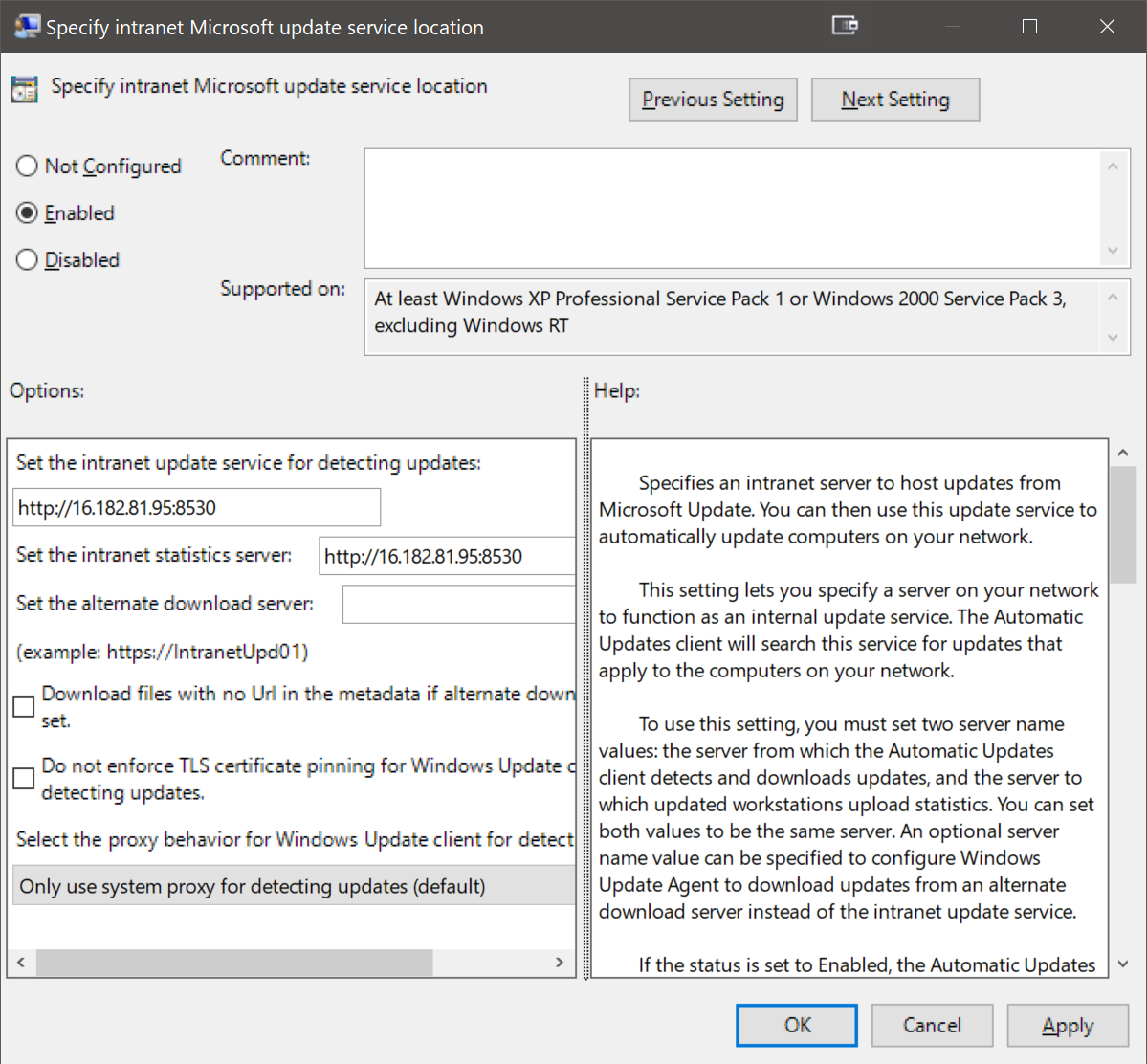
WSUS Server: http://16.182.81.95:8530
To configure a standalone host to use the above server, open the local Group Policy editor (gpedit.msc).
Expand Computer Configuration, Administrative Templates, Windows Components, Windows Update.
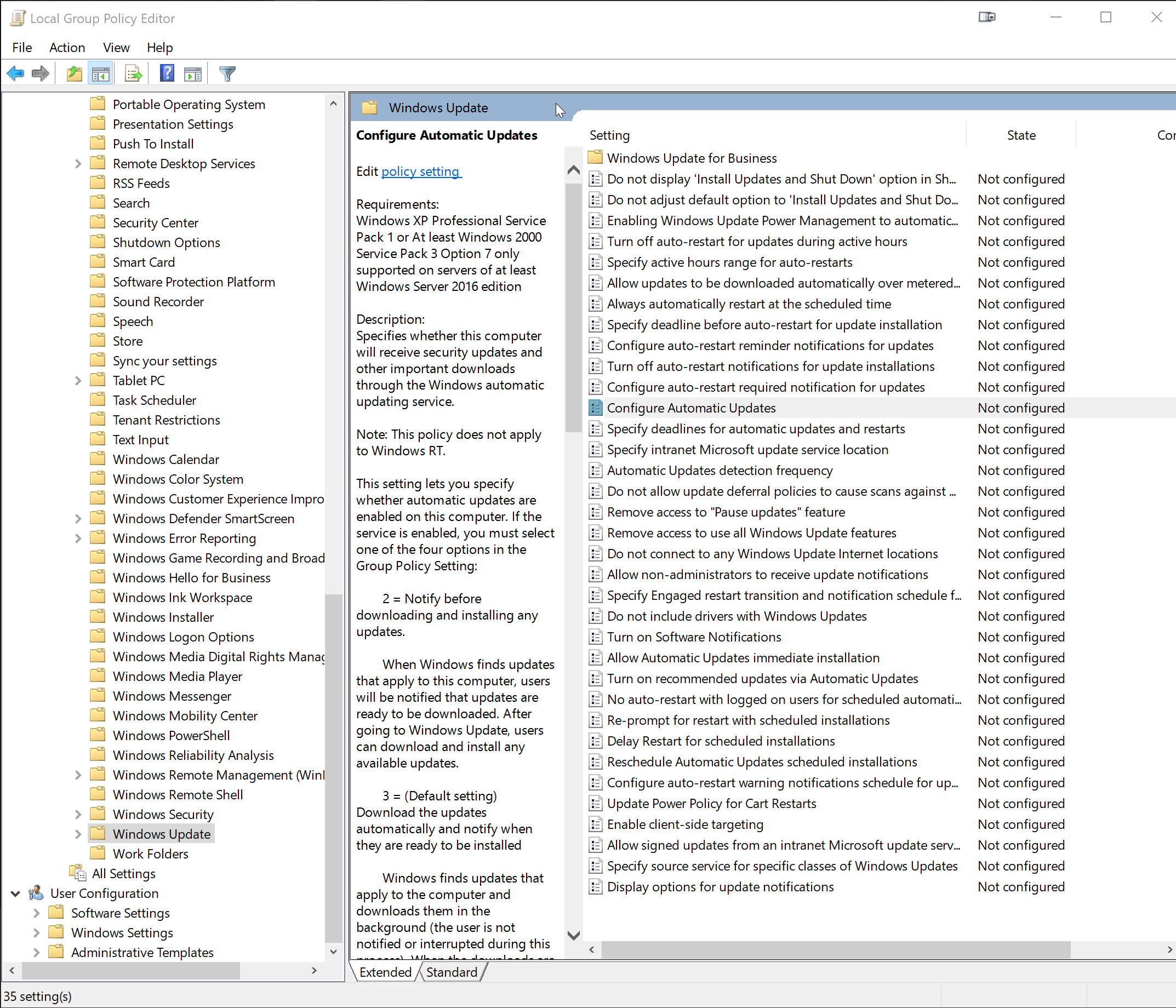
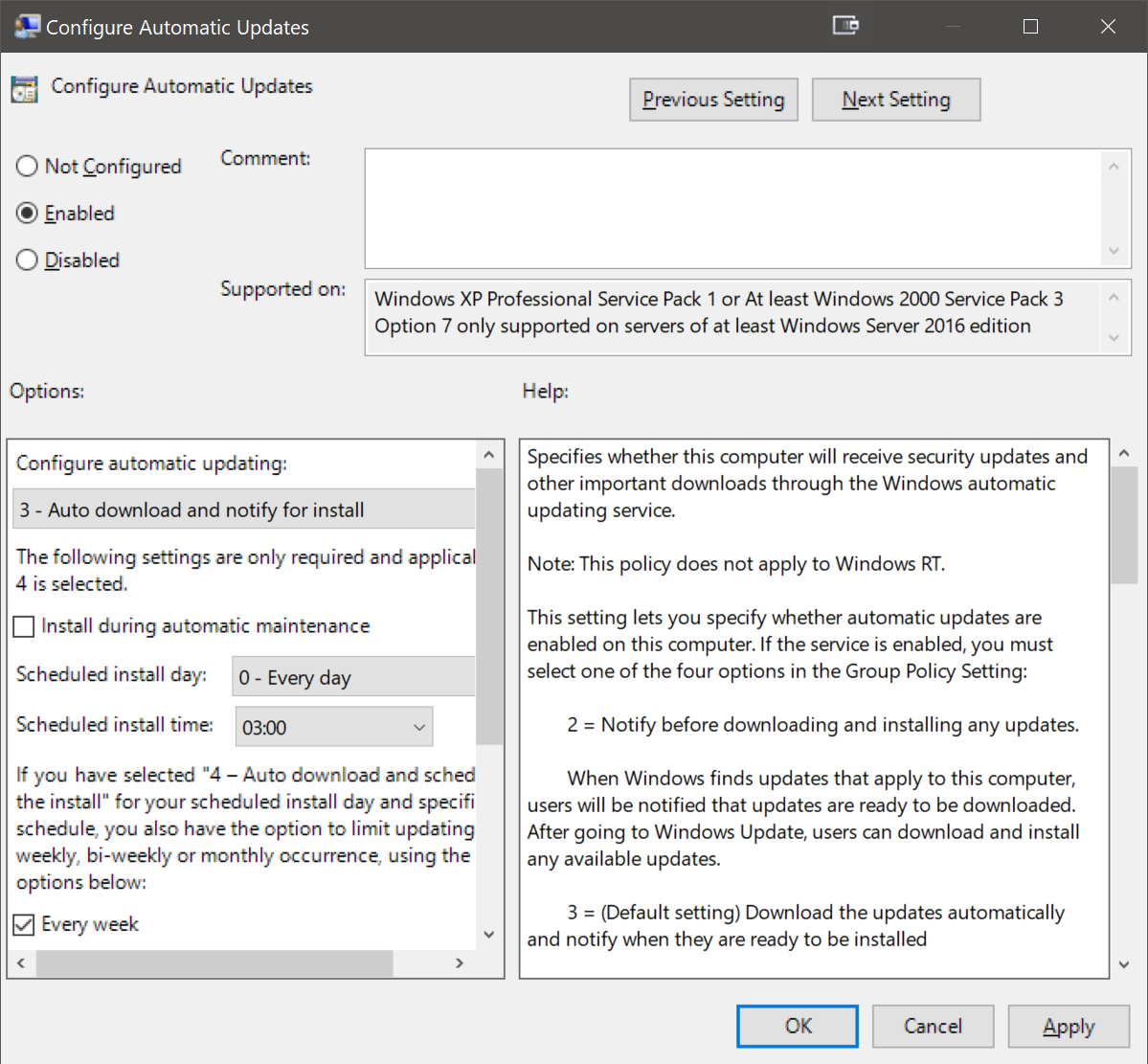
Edit Configure Automatic Updates, set to Enabled. Click OK.
Edit Specify intranet Microsoft update service location, set to Enabled. Configure the Set the intranet update service for detecting updates and Set the intranet statistics server to http://16.182.81.95:8530. Click OK.
Close the Group Policy editor and run Windows Update.
Group Policies
The following Group Policies are configured within the domain.
- WSUS settings
- Mapped drives
- Add Domain Users as local administrators to workstations/servers
- Password enforcement policy